
My Must Have WordPress Tools & Plugins
I don’t know about you but I only have so much time in my day and as much I love to write, blog and document life – I would much rather be living my life with my favorite people than doing that 1500 steps to make sure everything is perfect on my blog to document it. I’m all for cutting my time and stress in half.[Tweet “I would rather be living life than taking 1500 steps to document it. “]
My blogging time is usually nap time, which is also when I work for my freelance clients and the back side of the indie community I run. That said – I don’t have time to delegate to a million steps anymore. Two and a half years ago was a different story but these days, it just isn’t going to happen, which is also why daily posts still don’t happen and I’m okay with that. A while back I shared my switch to wordpress, including my love for Bluehost. Today though, I’m going to share with you my must have tools and plug-ins that make my life so much easier, my time better utilized and things smoother all around.
I do want to make note before I completely begin, the plugin links go to the info pages for each plugin. The easiest way to actually install the plugins list is to go to: Dashboard > Plugins > Add New > then search the title and click “install now”.

1. The WordPress App
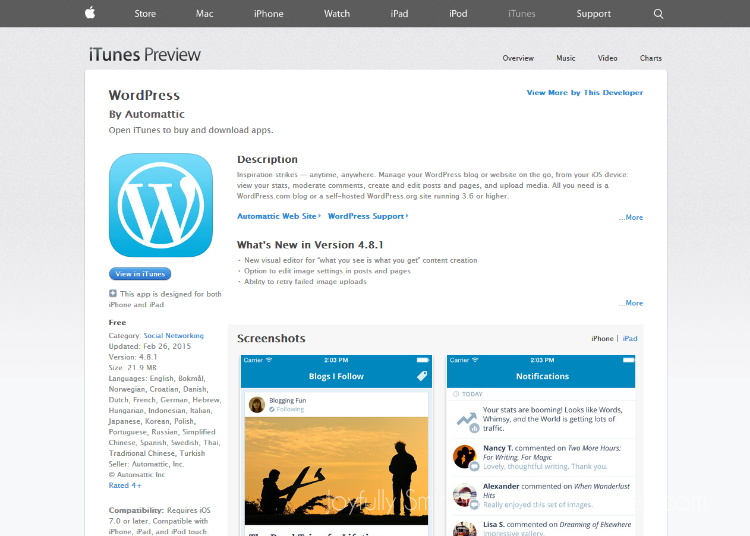 The WordPress app used to be pretty horrible but a couple months ago they rolled out the newest version and it’s completely better. You can read other blogs and you can edit, drop in photos, add tags and more using the app. The new interface is much more user friendly and easy to navigate.
As much as I wish I could say that I sit at my computer desk, uninterrupted while I write out my posts – I can’t, it would be a lie. Most of my posts either start of finish in the WP app via my iPhone. Sure, for 98% of my posts I end up using my computer for photo purposes before I publish, but there are times that I just want to write and I don’t care so much about the rest and do it all from my phone. One thing that is nice is that is within settings you can size your images for your posts automatically for max width! The WP app makes that easy. It syncs well with online so I can start, save draft and finish as I need to. Even better – the app lets me access all of my sites at one dashboard so I can see settings, posts and more on any of my sites with ease.
2. Drop Box
I cannot even explain my love for this little tool. I use it for my freelance work to share files between my clients and I, I use it for blogging, I use it for everything. I get to upload things from my phone and I have access across all of my devices with Dropbox. Via my computer everything nestles themselves into one folder so I have access and don’t have to save another copy to my computer. I back up my sites to Dropbox too! Such a space and time saver. Use this referral link and you’ll get extra space when you sign up.
3. Plugin: Easy Watermark
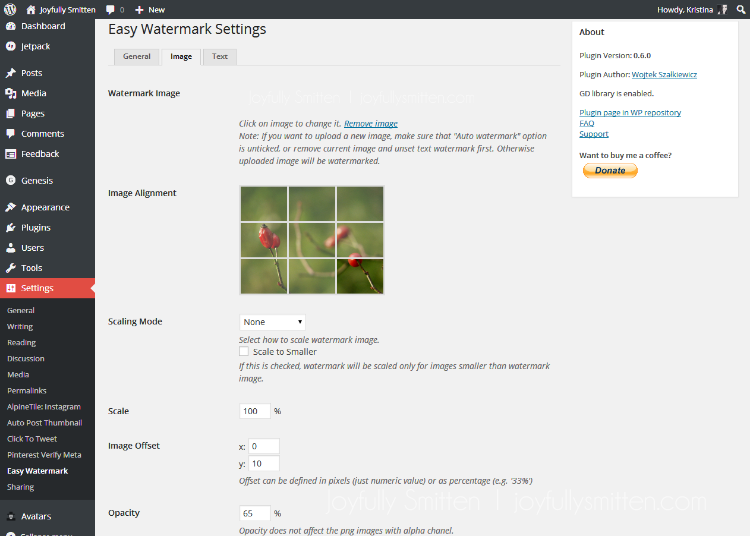 For years I would pull up photoshop, slap on a watermark, click save and have two copies of files on my computer – twice the space being used and twice the time I would have to take to upload photos onto my blog post. Oiy. I don’t know about you but this mama only has so much time and only so much drive space. This plugin does all the watermarking for me, all I have to do is upload images to my blog and Easy Watermark does the rest. No more time consuming watermarks and no more extra steps to make sure my images have a watermark. It even works when you are using the WordPress App!
You have the ability to upload an actual watermark image or you can use text. You as you can see above you can set the scale, location (for my images I like my watermark at the bottom right corner, so I figured out x: 0 y:10 works best for that location), and opacity. It is important to note that the watermark will show any images so if you aren’t wanting your watermark in your new header or sidebar photo you’ll need to deactivate the plugin before you do those items and reactivate later – or you can host them elsewhere and import via URL instead of uploading the file.
4. Plugin: Resize images before upload
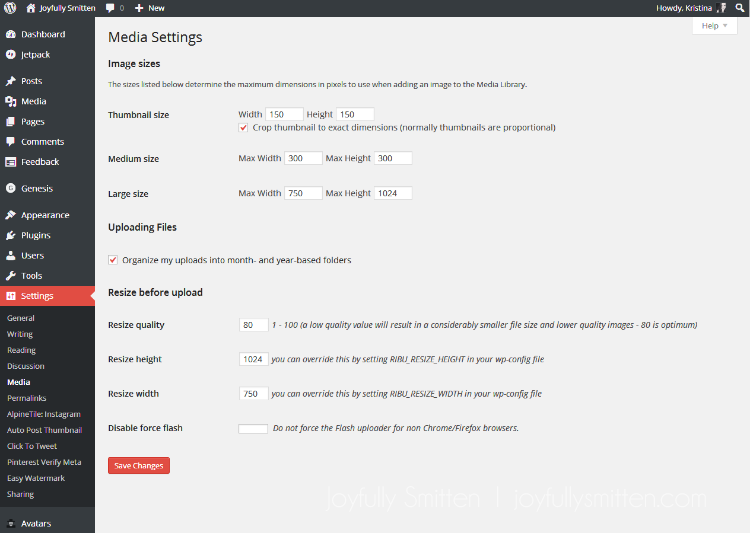 Like with the watermarking I was constantly saving double images and resizing in photoshop. Resize Images Before Upload is fantastic. One downside is that images don’t resize from the wordpress app if you insert them there. Although that can be a bummer, your watermark is still there it just looks tiny. Usually I write everything in the app if I’m away from a computer and the next time I’m at a computer I use that images quickly thanks to Drop Box.
5. Plugin: No Right Click Images
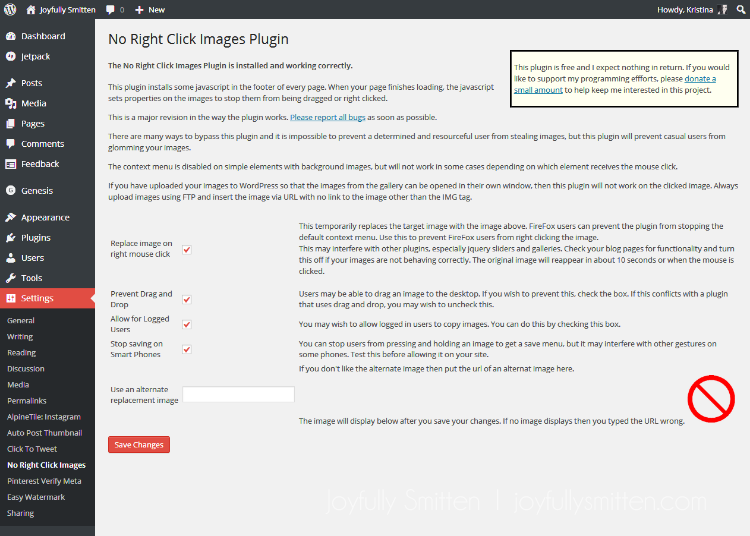 This plugin doesn’t really save me time, it really just saves me stress and gives me piece of mind. With this plugin I know someone can’t right click my images to save them, they can’t drag and drop them into a new window AND they can’t hold the image on a smart phone to save it. I have yet to find a more protective plugin for image protection. A lot of codes or plugins will stop the right click protection but someone can still save an image by dragging it to a new window (or desktop) or opening up the post on a smartphone and holding it until the “save image” pop-ups comes up. With this plugin everything is disabled and you can even let them think they are saving your image but a different image you uploaded will be saved instead. Can I stop someone from taking a screenshot? Sadly no, but these other ways are good ways to take the basic precautions and steps to make me feel like my content – especially family based content is protected.
6. Click to Tweet
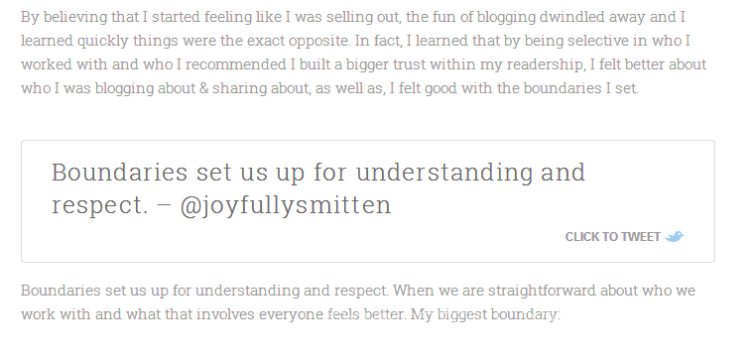
This fun plugin is excellent for post promotion. It makes it super easy for your readers to tweet right from you post with a click of a button and drive their twitter connections to your post. The above is from a recent post about how I choose affiliate programs I work with. I had two tweetables – two things I felt were strong points in my post and others would conquer with and find tweet worth in that specific post. As you can see above, I use one at the top of this post too. I don’t use tweetables in every post – but when I feel like I am offering up a post that a variety of people would love to read or find interesting they will worthy of tweeting. Personal posts, I don’t really use it unless I have some great insight on something particular, but posts like this, some recipes and other advice or DIY posts the plugin is perfect for. By using Click to Tweet you make it super easy for your readers to share you post. The easier it is, the more likely they will share it. It’s about convenience people! A little twitter bird will appear on your You type in the tweet to submit and it’s smooth sailing from there.





Love that watermark plugin! I need to be using it!
Makes life so much easier and saves so much time!! I hope you love it!